 Techieword Technology Blog that posts articles about latest technology, trends, SEO, Gadgets, Facebook, Blogging and lot more.

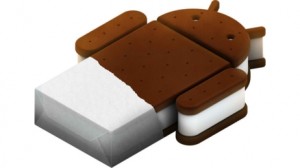
For a tech savvy, who wants to have a tablet, Samsung Galaxy Tab 10.1 is the perfect choice. It has got all hardware features that you may be at the top of wishlist. Well, if you are neglecting it just because of its OS, then do check out this process for Samsung Galaxy Tab 10.1 Ice Cream Sandwich.
Disclaimer
Stop reading the article here, if you are new in the Android ROMs installation field. Still, if you are curious to do so, do at your own risk.
Prerequisites
- Take the backup of data before proceeding ahead. Use any app for this or go manual.
- Charge the battery so that power may not create any problem during the process.
Procedure for Samsung Galaxy Tab 10.1 Ice Cream Sandwich
- Download the Samsung Galaxy Tab 10.1 Ice Cream Sandwich from here.
- Download the Odin 1.85 v from here.
- Press Volume Down and Power buttons to enter your device into Download Mode. Samsung Logo or Android Robot will appear on screen on your entry in Download Mode.
- Now launch the Odin and connect your Tab 10.1 with computer.
- The message “Added!!!” will appear. Reconnect, if it does not.
- Select the files that you need to flash.
Click PDA button and choose file with ‘CODE’ in its name.
Click Phone and click file ‘MODEM’.
Click on CSC and choose file with CSC in its name.
Click on PIT and tap on the .pit file.
- Click on ‘Start’ in Odin.
- Be patient. The installation will take some time, around 2-5 minutes.
That’s it. So it’s all done with Samsung Galaxy Tab 10.1 Ice Cream Sandwich. Cheers!